
Last updated: · By the Apollo Group TV support team
Android TV and Google TV make this one of the easiest setups. Sony, TCL, Hisense and Philips sets, Nvidia Shield and most Android boxes all get their apps from Google Play, so you install a player there and type in the login we send you. There’s nothing to sideload and no security setting to change.
What you’ll need
- Your login from us. If you don’t have one yet, a free 24-hour trial gets you one without a card.
- The TV signed in to a Google account, so Google Play opens.
- A player app that takes Xtream Codes or M3U. We don’t make our own; see which player app to use.
Install a player from Google Play
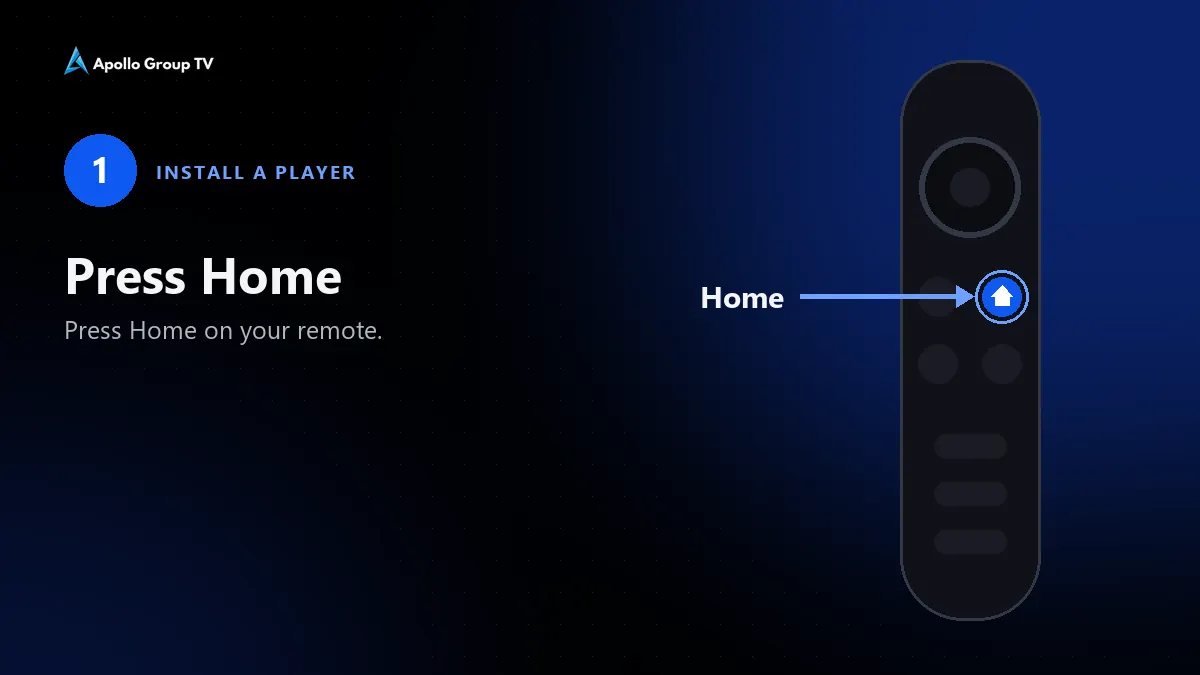
- Press Home on your remote.
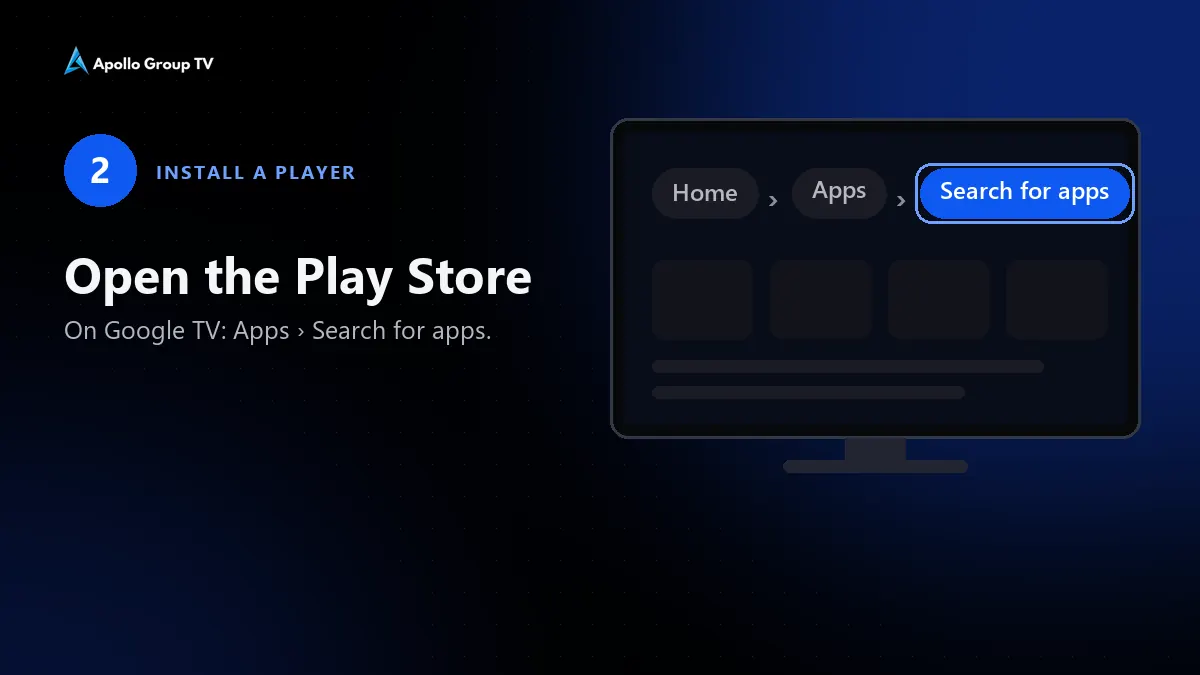
Install a player · step 1: Press Home - Open the Google Play Store. On Google TV, go to the Apps tab and choose Search for apps.
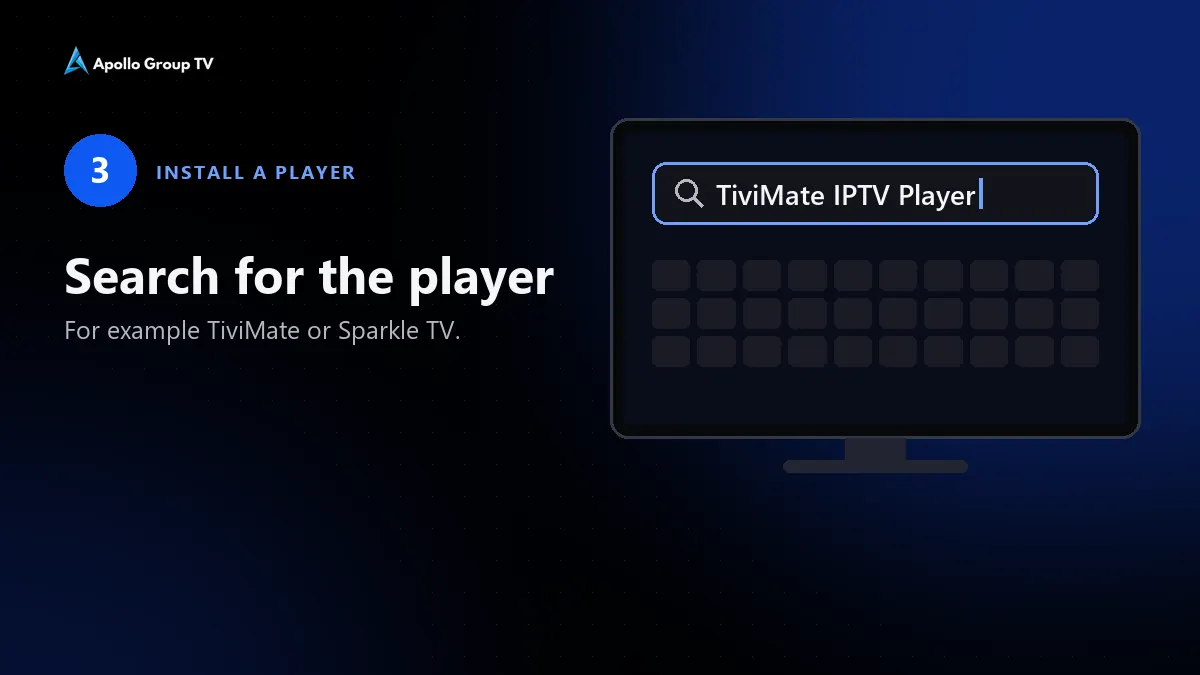
Install a player · step 2: Open the Play Store - Search for TiviMate IPTV Player or Sparkle TV Player. Both accept our login.
Install a player · step 3: Search for the player - Select Install, wait for it to finish, then select Open.
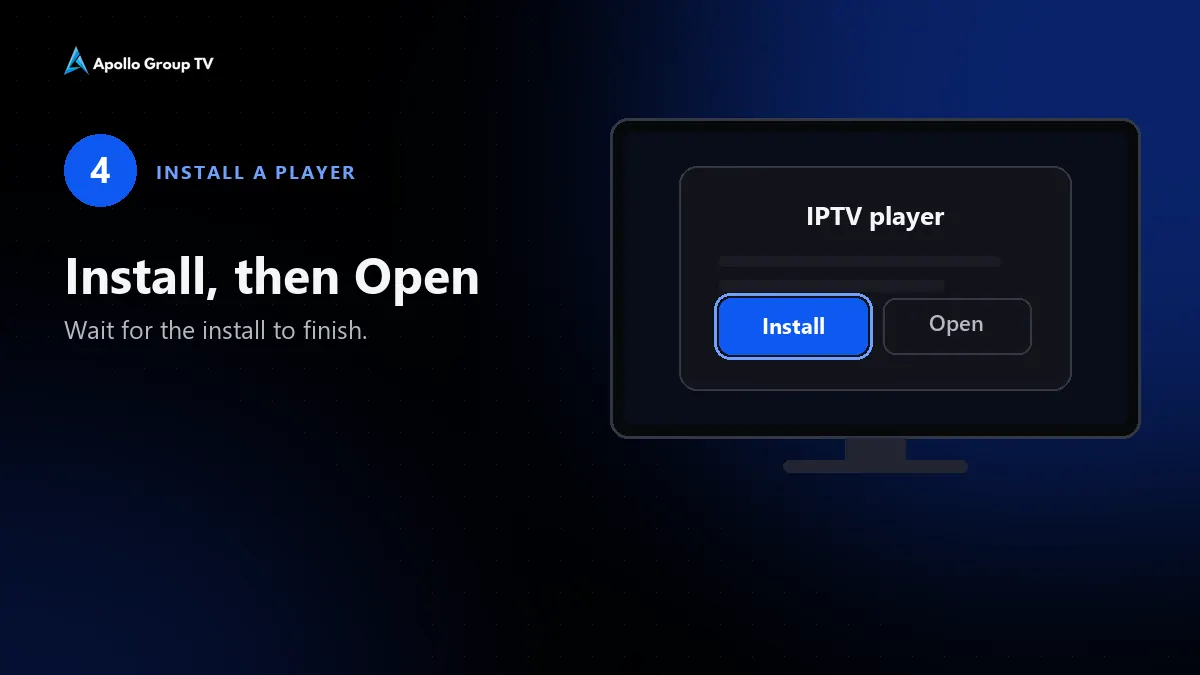
Install a player · step 4: Install, then Open
Both are free to install. Some features are a paid upgrade sold by the app maker. You don’t need them to watch, and that payment never comes to us.
Add your login in TiviMate
- Open TiviMate and select Add playlist.
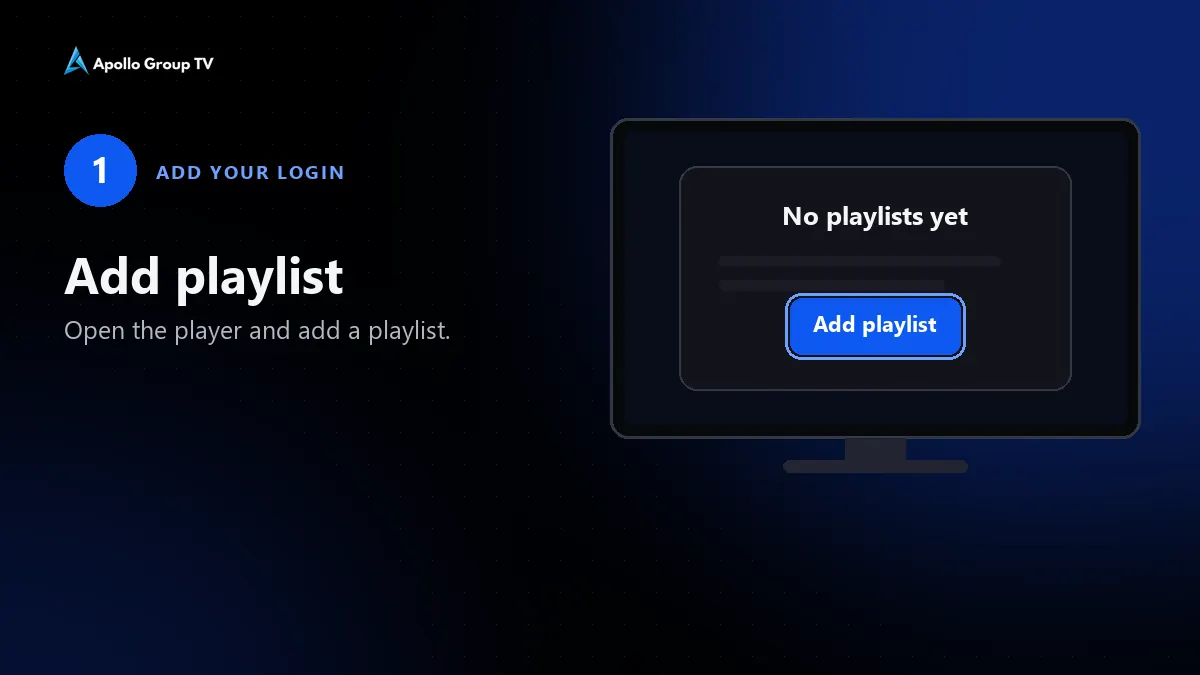
Add your login · step 1: Add playlist - Choose Xtream Codes.
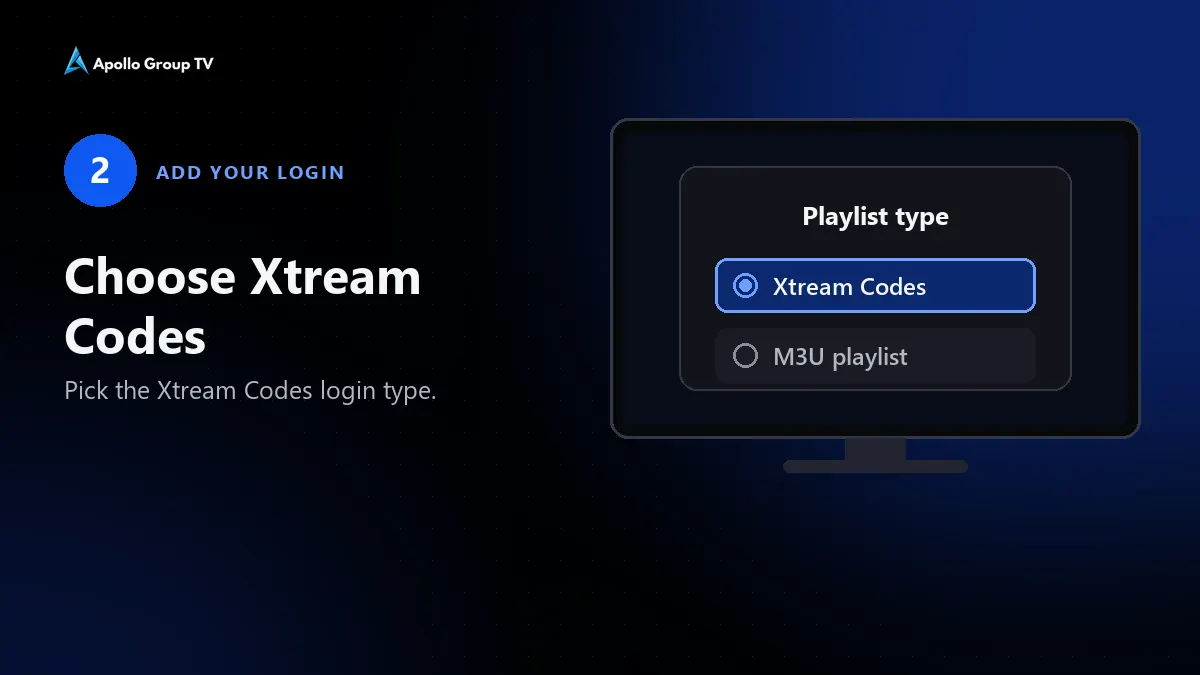
Add your login · step 2: Choose Xtream Codes - Enter the server address, then your username and password, exactly as they appear in our message. Capital letters matter.
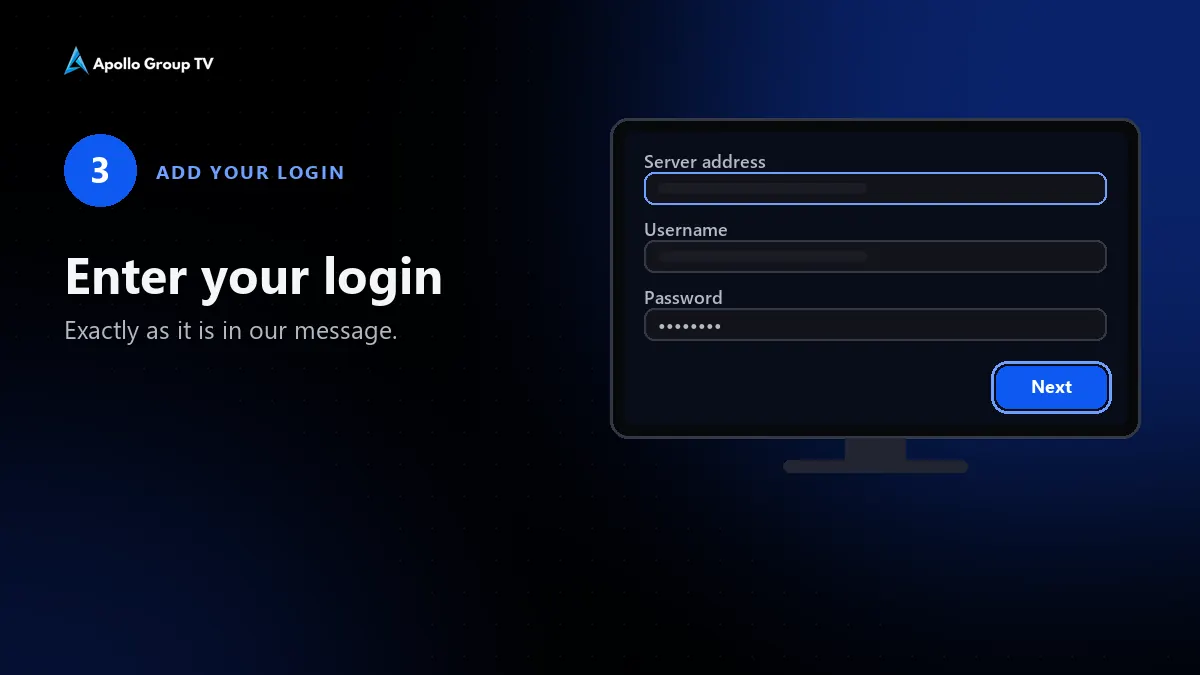
Add your login · step 3: Enter your login - Select Next. TiviMate checks the login and shows how many channels it found.
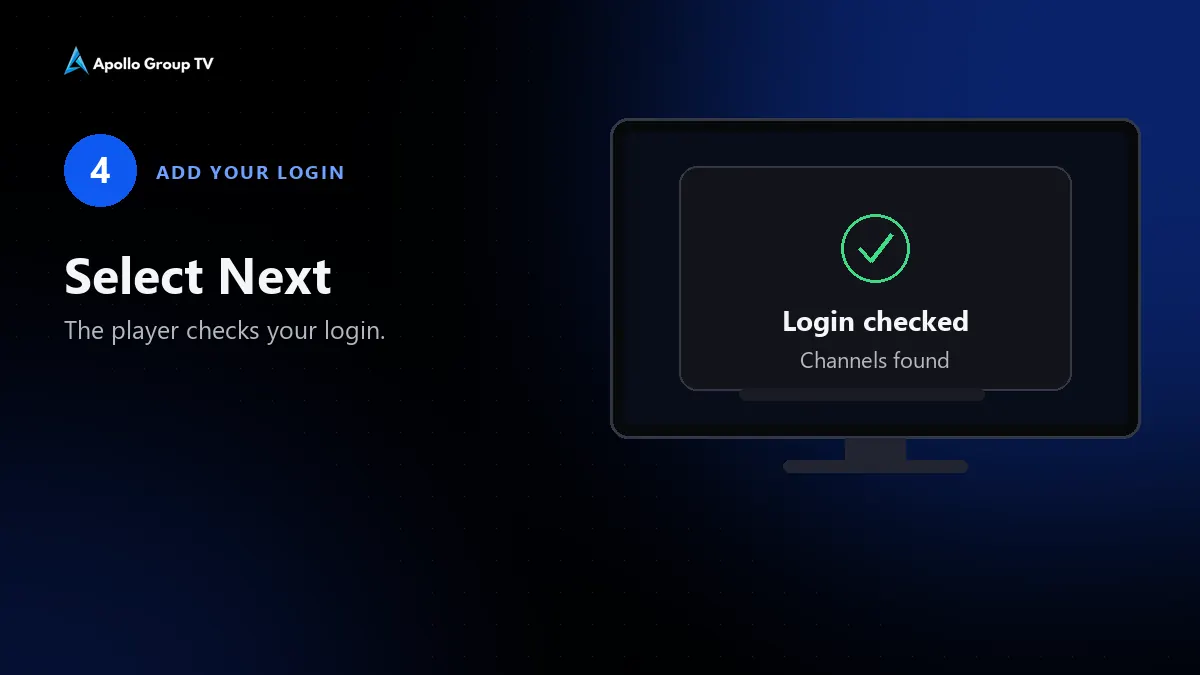
Add your login · step 4: Select Next - Give the playlist a name, such as Apollo Group TV, and select Done.
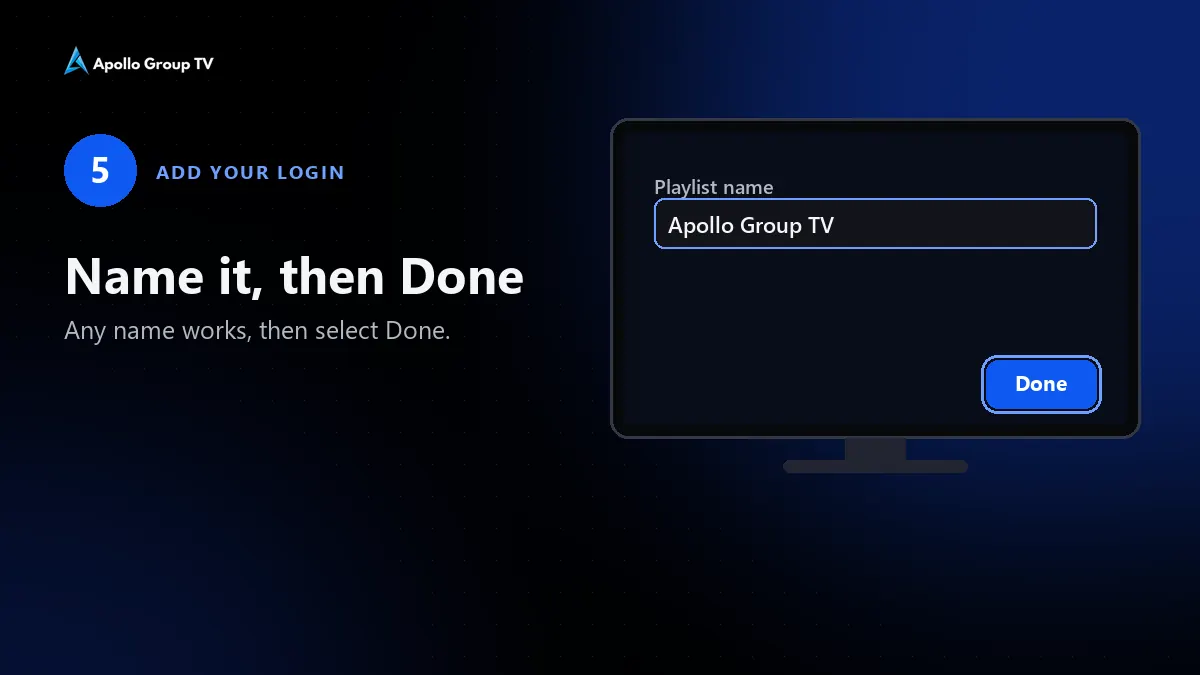
Add your login · step 5: Name it, then Done
The first load can take a few minutes while the channel list, films and series download. Got an M3U link instead? Choose Enter URL on the first screen and paste the link from our message. In Sparkle the wording differs slightly, but you’ll find the same two choices.
On an Android phone or tablet
TiviMate is designed for a remote, not a touch screen. On a phone or tablet, install a player built for touch from Google Play, one that accepts Xtream Codes or M3U, and add the same login. Remember that a 1-device plan won’t let the phone and the TV play at the same time.
Setting up an Amazon stick instead? Its menus are different, so read how to install Apollo Group TV on Firestick.
Fixing common Android TV problems
- Google Play can’t find the player: check that the TV is signed in to your Google account, then search for the app’s full name.
- Typing with the remote is slow: the Google TV app on your phone has a remote with a keyboard. Pasting the password beats typing it, since a missed capital letter is the usual cause of a rejected login.
- Login rejected: look for a space before or after the username or password, and check that your trial or plan is still active. Our page on fixing 403 and timeout errors covers the rest.
- The TV stops when a phone starts: a 1-device plan streams to one screen at a time. Plans for 2 or 3 screens are on the pricing page.
Android TV questions
Do I need the Downloader app on Android TV?
You don’t. Google Play already has players that work with our login, so there’s nothing to sideload, and we don’t publish a Downloader code.
Does it work on Nvidia Shield?
It does. The Shield runs Android TV, so the steps on this page are exactly the same.
I’ve lost my login. Where is it?
It’s in our WhatsApp chat, and paid plans also get it by email. Still can’t find it? Read where to find your login or message us.
Ready to watch on your TV?
Try it free for 24 hours on the TV you’ll actually use. No card needed, and plans start at $35 for 3 months on one device if you decide to stay.
Start your free trialSee plans and prices
Stuck on a step? Message us on WhatsApp; we answer every day. Every other device has its own page among the installation guides.