How to Install Apollo Group TV on Samsung, LG and Smart TVs
Last updated: · By the Apollo Group TV support team
Most smart TVs can play Apollo Group TV through an IPTV player app from the TV’s own app store. Which store you use depends on the system your TV runs. Find your TV below, install a player, then sign in with the login we send you.
Before you start
- You need an Apollo Group TV login. Start a free 24-hour trial (no card needed) or choose a plan. We send your login on WhatsApp.
- We do not have our own app. You watch with a third-party IPTV player app that supports Xtream Codes or M3U playlists. See player apps that work with Apollo Group TV.
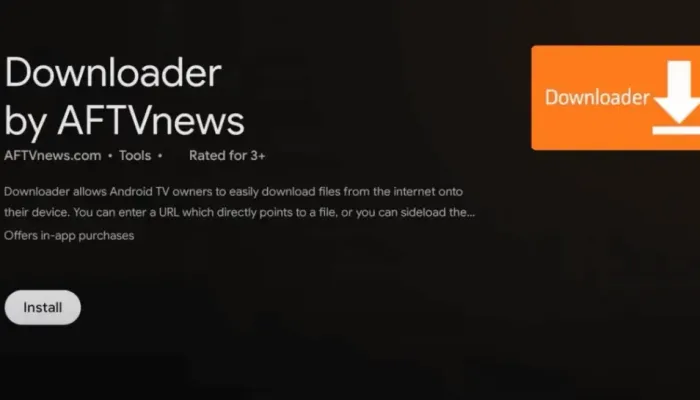
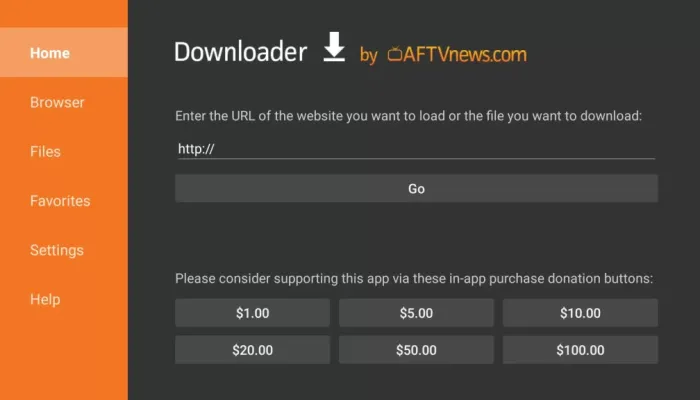
- Samsung and LG TVs cannot install app files from the internet. They only install apps from their own app store, so you use an IPTV player from that store.
Which Smart TV Do You Have?
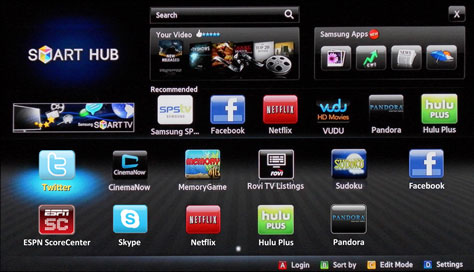
- Samsung (Tizen): use the Samsung Apps store. See the Samsung steps.
- LG (webOS): use the LG app store. See the LG steps.
- Sony, TCL, Hisense, Philips and other TVs with Google TV or Android TV: use Google Play. See the Google TV steps.
- TVs with Fire TV built in: follow the Fire TV Stick guide.
- Other TVs, such as Roku TVs or Hisense TVs with VIDAA: few IPTV players are available for these systems. Use the free trial to check before you order, or plug in a Fire TV Stick or an Android TV box and follow its guide.
Samsung Smart TV (Tizen)
- Press Home on your remote and open Apps.
- Select the search icon and type IPTV.
- Pick a player that accepts an M3U playlist link or an Xtream Codes login. One example is Smart IPTV: its maker lists Samsung TVs from 2022 onward (Tizen 6.5 or later). Check the app page to make sure it supports your TV.
- Select Install, then open the app.
- Add your login. Many TV-store players show your TV’s MAC address on screen and ask you to add your M3U link on the app maker’s website. Follow the steps the app shows.
LG Smart TV (webOS)
- Press Home and open the app store. It is called Apps on newer LG TVs and LG Content Store on older ones.
- Search for IPTV.
- Pick a player that accepts an M3U playlist link or an Xtream Codes login. Smart IPTV’s maker lists LG TVs with webOS 3.0 or later.
- Select Install, open the app and add your login as the app shows.
About activation fees: some smart TV player apps give a short free trial, then ask for a one-time activation fee per TV, paid on the app maker’s website. That fee goes to the app maker, not to us, and it is separate from your Apollo Group TV plan. Read the app’s terms before you pay.
Sony, TCL, Hisense and Other Google TV or Android TV Sets
These TVs use Google Play. Install a player such as TiviMate IPTV Player from Google Play and sign in. Our Android TV and Google TV guide shows each step.
Sign In With Your Apollo Group TV Login
- Open the player app you installed.
- Choose the Xtream Codes login (some apps call it Xtream Codes API or XC). Enter the server URL, username and password from the message we sent you, exactly as written.
- If the app only takes a playlist link, choose M3U or Playlist URL and paste the M3U link we sent you.
- Wait while the app loads live channels, movies and series. The first load can take a few minutes.
If your Samsung or LG player asks you to add the playlist on the app maker’s website, paste the M3U link we sent you there, then restart the app on your TV.
If Something Does Not Work
- No channels after adding the link on the website: close the player app on your TV and open it again so it reloads the playlist.
- Login error: check the server URL, username and password. They are case-sensitive, so copy them exactly.
- Channels stop on another screen: a 1-device plan plays one stream at a time. Close the app on the other device, or choose a 2- or 3-device plan on the pricing page.
- Still stuck? Send us a message and we will walk you through it.
Ready to Watch?
Try Apollo Group TV free for 24 hours, no card needed. Plans start at $35 for 3 months on one device, and every paid plan has a 24-hour money-back guarantee from activation.
Start your free trialSee plans and prices
Stuck on a step? Message us on WhatsApp (we answer every day) or use the contact form. You can also read the FAQ, see player apps for every device or browse all installation guides.